
Download qBittorrent – Free, Secure BitTorrent Client for Windows, macOS & Linux
What Is qBittorrent? An Easy‑to‑Use BitTorrent Client
qBittorrent is a lightweight, open‑source BitTorrent client that aims to provide the power and flexibility of premium software while keeping the interface clean and intuitive. First released in 2006, the project has grown into a reliable alternative to commercial clients such as uTorrent, offering a native‑look design that feels familiar to users on any platform. The core philosophy behind qBittorrent is simplicity: you download the installer, launch the program, and start adding torrents—no wizard, no hidden ads, and no forced upgrades.
Despite its minimalistic appearance, qBittorrent packs a robust set of features that satisfy both casual downloaders and power users. Its built‑in search engine (which can be extended with plug‑ins) connects to major torrent databases, while the integrated RSS reader lets you automate downloads from your favorite feeds. For creators, a torrent‑maker tool turns any file or folder into a shareable .torrent file with just a few clicks.
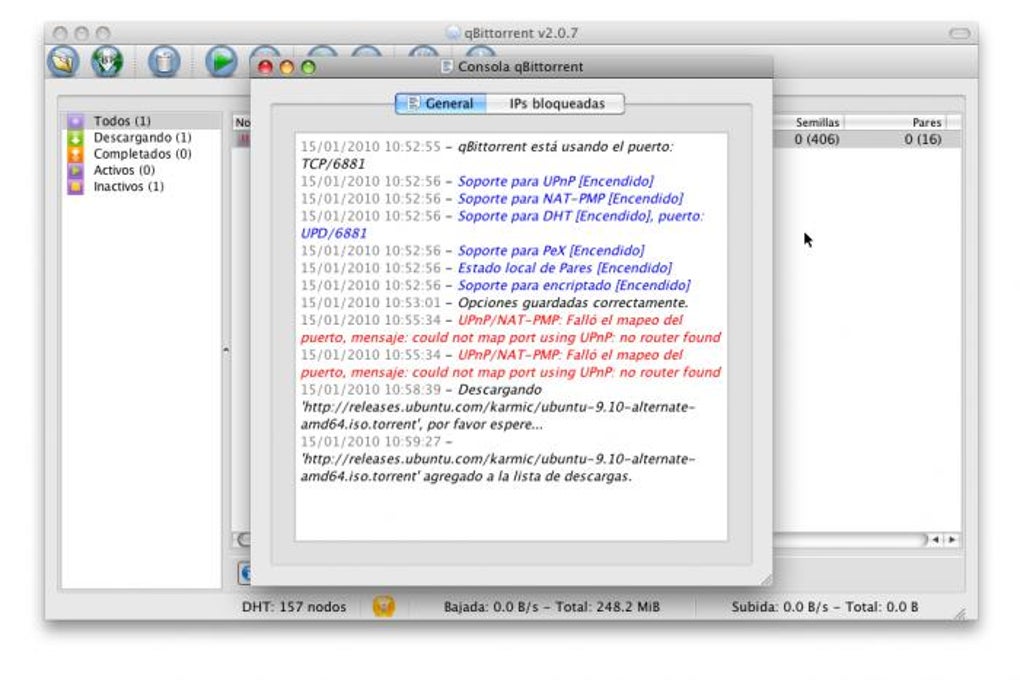
Network‑friendly technologies such as UPnP, NAT‑PMP, and DHT are supported out of the box, ensuring that your connections are optimized without manual port forwarding. Additionally, the client offers tag‑based organization, a shutdown‑on‑completion option, and a responsive web UI that lets you control your downloads from any browser, tablet, or smartphone. Whether you’re seeding a media library, downloading large Linux ISOs, or simply testing a new file‑sharing workflow, qBittorrent delivers a secure, ad‑free experience that respects your privacy and your bandwidth.
Key Features That Set qBittorrent Apart
- Clean, native interface that mimics the look of modern operating systems.
- Built‑in search engine with support for multiple torrent sites (plug‑in extensible).
- Full RSS feed support with download filters and auto‑download rules.
- Integrated torrent creator for quick .torrent generation.
- Advanced networking: UPnP, NAT‑PMP, DHT, Peer Exchange (PEX), and encryption.
- Tag system for organizing torrents into custom groups.
- Automatic shutdown or hibernate when all active downloads finish.
- Remote Web UI for managing torrents from any device with a browser.
- Sequential downloading mode for streaming media while still downloading.
- Speed limits per torrent and globally, plus scheduler for bandwidth control.
- IP filtering and blocklist support for added security.
- Cross‑platform compatibility: native builds for Windows, macOS, and major Linux distributions.
- Open‑source GPL license – free to use, modify, and distribute.
How to Install and Run qBittorrent on All Major Platforms
Getting started with qBittorrent is intentionally straightforward. The official website provides dedicated installers for Windows, macOS, and a variety of Linux package formats. Below are step‑by‑step instructions for each operating system, followed by a quick overview of the initial user experience.
Windows (10/11)
- Visit qbittorrent.org/download and click the Windows 64‑bit installer.
- Run the
.exefile; the standard Windows Setup wizard will guide you through license acceptance and destination folder selection. - When installation completes, launch qBittorrent from the Start menu or desktop shortcut.
- The first launch presents a concise welcome dialog. Click OK to accept the default settings—no additional configuration is required.
macOS (10.13+)
- Download the
.dmgpackage for macOS from the same download page. - Open the disk image and drag the qBittorrent icon into your Applications folder.
- Double‑click the app; macOS may warn you about an app from an unidentified developer—choose Open Anyway in System Preferences → Security.
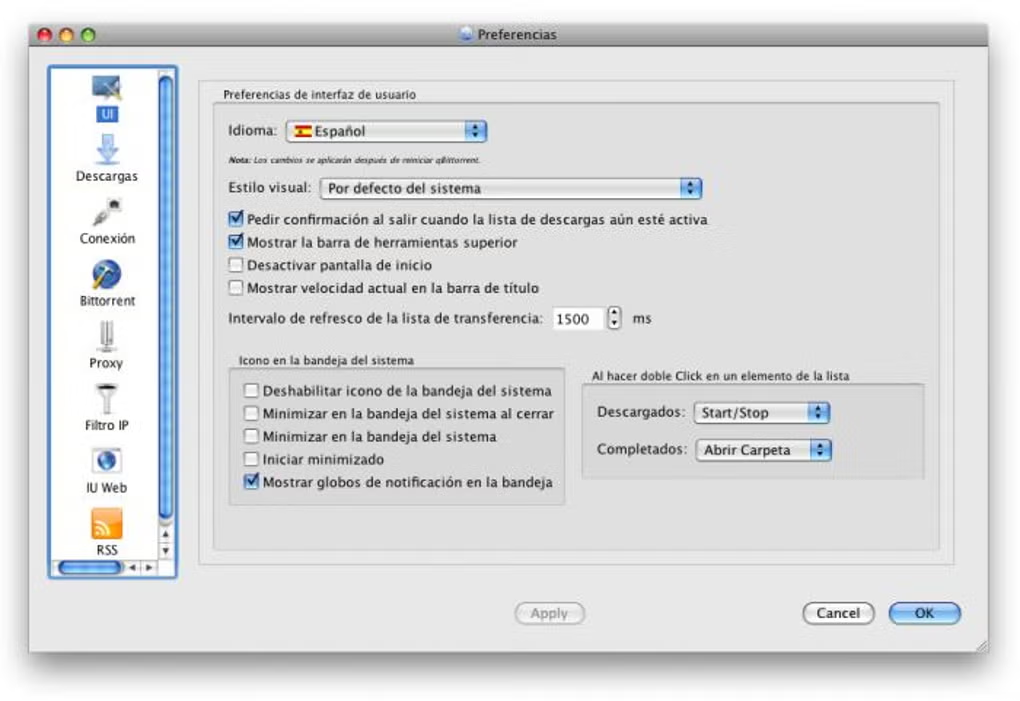
- After the first launch, the preferences pane allows you to enable the Web UI, configure speed limits, and set up RSS feeds.
Linux (Ubuntu, Fedora, Debian, Arch, etc.)
Most popular distributions ship qBittorrent in their official repositories, which guarantees automatic updates through the system package manager.
- Ubuntu/Debian:
sudo apt update && sudo apt install qbittorrent - Fedora:
sudo dnf install qbittorrent - Arch Linux:
sudo pacman -S qbittorrent
After installation, launch qBittorrent from your desktop environment’s application menu. The first‑run experience mirrors the Windows and macOS versions—no wizard, just a clean window ready for torrents.
Supported operating systems include Windows 10/11 (both 64‑bit and 32‑bit), macOS 10.13+ (Catalina and later), and most Linux distributions with official package support (Ubuntu, Debian, Fedora, openSUSE, Arch, etc.). Portable binaries are also available for users who prefer a no‑install version on Windows.
Pros, Cons, Frequently Asked Questions & Final Verdict
Pros
- Completely free and open source – no hidden fees or ad‑supported upgrades.
- Lightweight footprint; runs smoothly on older hardware.
- Feature‑rich without overwhelming the user interface.
- Cross‑platform consistency makes switching between devices seamless.
- Robust networking support ensures reliable connections even behind NAT.
- Remote Web UI empowers power users to manage torrents from any browser.
- Active development community provides frequent security patches.
Cons
- Search engine requires optional plug‑ins, which may need manual installation.
- While stable, the UI can feel dated compared to ultra‑modern commercial clients.
- Limited built‑in media playback; external players are needed for streaming.
- No integrated VPN; users must rely on third‑party solutions for anonymity.
- Advanced users may miss some granular configuration options found in niche clients.
Frequently Asked Questions
Is qBittorrent safe to use?
Yes. qBittorrent is open source, which means its code is publicly reviewed. It contains no adware or spyware, and it receives regular security updates from a dedicated community.
Can I limit download and upload speeds?
Absolutely. qBittorrent offers global and per‑torrent speed limits, as well as a scheduler that lets you define bandwidth caps for specific times of day.
How do I enable the remote Web UI?
Open Tools → Options → Web UI, enable the service, set a username and strong password, and choose a port (default 8080). After saving, you can access http://your‑ip:8080 from any browser on the same network.
Does qBittorrent support magnet links?
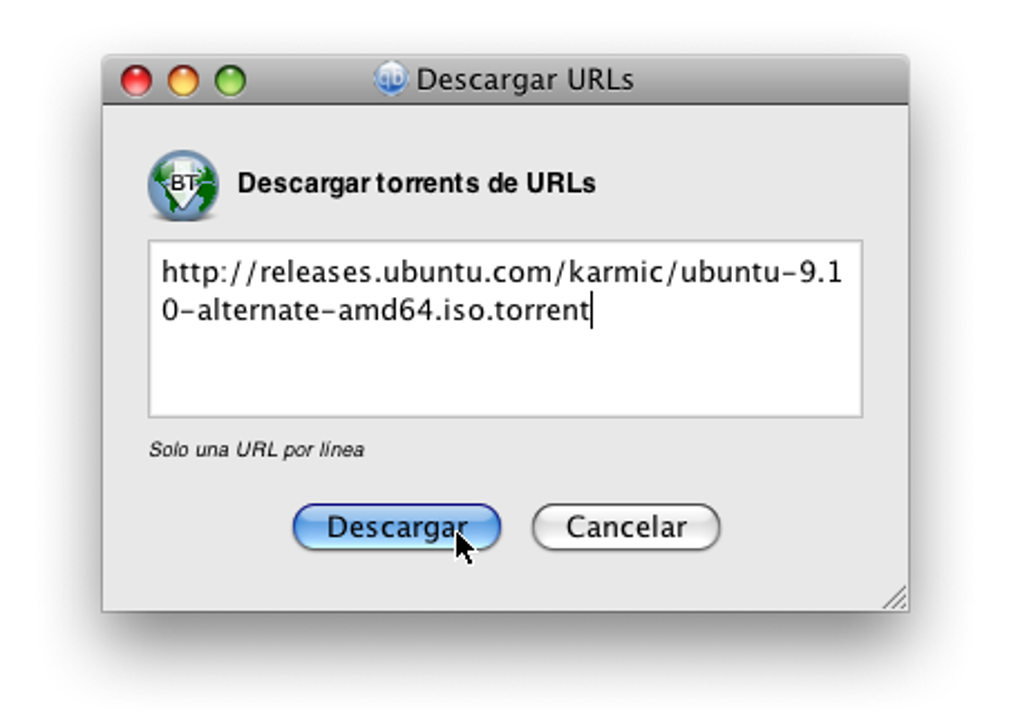
Yes, magnet links are fully supported. You can paste them directly into the “Add Torrent” dialog or drag‑and‑drop them onto the main window.
Can I organize torrents with tags?
Tags are a native feature. Right‑click a torrent, choose “Add Tag,” and type a label. You can then filter or group torrents by these tags for better library management.
Final Verdict
In a landscape crowded with paid, ad‑supported, or feature‑bloated torrent clients, qBittorrent stands out as a balanced, secure, and genuinely free solution. Its clean interface invites newcomers, while its extensive feature set—including RSS, tag‑based organization, and a responsive web UI—satisfies seasoned power users. The occasional need for plug‑ins (for the search engine) is a minor trade‑off for the ad‑free experience and the ability to audit the code yourself. Whether you are a student needing a reliable way to fetch large lecture videos, a Linux enthusiast who prefers open‑source tools, or a media hobbyist who wants to automate downloads, qBittorrent delivers the core functionality you need without sacrificing performance or security. Download today, configure the optional Web UI if you like remote control, and enjoy fast, private file sharing with a client that respects your bandwidth and your wallet.
qBittorrent provides a polished, open‑source alternative that ticks all the boxes for everyday torrenting. Its only real drawback is the optional nature of the search plug‑ins, but that is a small price to pay for a clean, ad‑free experience. Overall, a solid 4.5‑star rating.







